Amazon Product Fill Requirements: The 85% Rule Explained
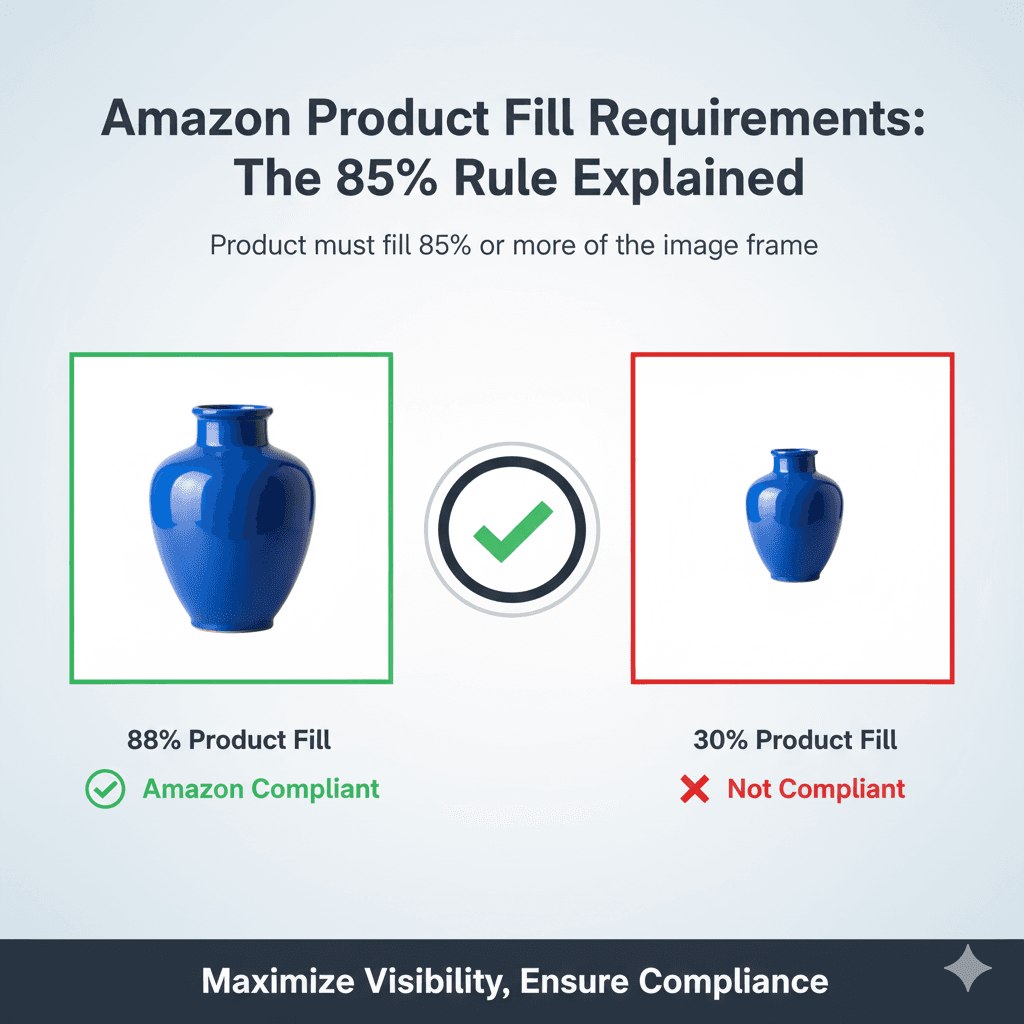
The Short Answer
Amazon's Product image guide says, for the main image: "Show the product as 85% of the image." (Amazon Product image guide). Its guide to taking product photos puts it as "Have the product fill 85% or more of the frame" (Amazon). Neither page says how to measure it.
ComplianceKit measures fill on the product's longest side: the longest side of the box around the product, as a share of the frame. On a 2,000 × 2,000 image, a product whose longest side is 1,700 pixels or more passes our check.
| Image | Product's longest side | Span | Our 85% check |
|---|---|---|---|
| 2,000 × 2,000 | 1,700 px | 85% | Passes |
| 2,000 × 2,000 | 1,500 px | 75% | Below |
| 2,000 × 2,000 | 1,000 px | 50% | Below |
| 3,300 × 3,300 | 3,000 px | 91% | Passes |
An under-filled image can upload and go live. Amazon's Image suppression page lists "Product too small", described as "Product image is too small in the image frame", as a reason it can hide a listing from search, and it applies to any image, not just the main one (Amazon Image suppression).
This guide covers:
- What the 85% rule says, and how it is measured
- What an under-filled image costs
- How to measure fill yourself
- How to frame square, tall, wide and small products on a square image
- The framing mistakes that leave a product too small
What Is the 85% Rule?
What Amazon Says
Amazon's Product image guide, in its main image requirements, puts it in one line: "Show the product as 85% of the image." Its guide to taking product photos says the same thing another way: "Have the product fill 85% or more of the frame."
Some of Amazon's category style guides use a different word. Its clothing guide (Spring 2021) and shoes guide (2019) both say: "The product must fill at least 85% of the image area." Its jewelry guide (2014) asks for "at least 80 percent of the image area". None of them explains how that area is measured.
How ComplianceKit Measures It
We measure it by span. Draw a box around the product's outermost edges, and its longest side should reach at least 85% of the image's width or height. White space, and any shadow outside the product, don't count.
We don't read "image area" as the share of pixels the product covers, because almost no product could pass that way. A round plate can never cover 85% of a square image's area: a circle touching all four edges covers about 79%. A bottle framed so its height spans 90% of a square image covered 24.9% of the pixels when we measured one. Both look correctly framed, and both easily span 85%.
Span is the reading that works for any shape, so it is the one ComplianceKit uses.
Breaking Down ComplianceKit’s Span Measurement
For a 2000x2000 pixel image:
- 85% of the frame: 2000 × 0.85 = 1700px
The product's longest side should measure at least 1700 pixels.
Centred, that leaves at most 150 pixels of white space at each end of the product's longest side.
Visual Example
Passes ComplianceKit’s span check (85%):
┌────────────────────────┐
│    [150px margin]      │
│  ┌──────────────────┐  │
│  │                  │  │
│  │    PRODUCT       │  │
│  │   1700x1700px    │  │
│  │                  │  │
│  └──────────────────┘  │
│    [150px margin]      │
└────────────────────────┘
Under-filled (product too small):
┌────────────────────────┐
│                        │
│     ┌──────────┐       │
│     │ PRODUCT  │       │
│     │ 1200px   │       │
│     └──────────┘       │
│                        │
└────────────────────────┘
In the second image the product spans 1200 of 2000 pixels: 60%.
What an Under-Filled Image Costs
A Smaller Product in Every Thumbnail
Search results show your main image scaled down to a small thumbnail, and the product shrinks with it. The share of the frame it spans stays the same.
A product spanning 60% of the image spans 60% of the thumbnail. At 90% it spans 90%. Put side by side in a results grid, the first product looks about a third smaller than the second, though both images are the same size.
That is the everyday cost, and it is easy to miss because the image looks fine on its own. It only looks small next to a competitor.
It Can Get the Listing Suppressed
Amazon's Image suppression help page lists "Product too small" among the reasons it hides a listing from search: "Product image is too small in the image frame." It applies that reason to any image, not just the main one.
Amazon doesn't say how small is too small, or that 85% is the line. And detection isn't instant: Amazon's community manager team has said "it may take some time for the system to detect them". So an under-filled image can stay live for a long time and still be flagged later. The search suppression guide covers what to do if it happens.
Upload Success Does Not Establish Compliance
An under-filled image may upload before a compliance problem is detected. Measure it before uploading.
How to Measure Product Fill
Method 1: A Selection in Your Editor
- Open the image in Photoshop or any editor with a rectangular selection tool
- Draw a selection around the product's outermost edges, leaving out the white space beyond them
- Read the selection's width and height (in Photoshop: Window → Info)
- Divide the longer of the two by the image's side length
For a 2000x2000 image:
- Selection 1800 x 1400: 1800 ÷ 2000 = 90% ✓ passes
- Selection 1600 x 1600: 1600 ÷ 2000 = 80% ✗ fails, needs 85%+
Method 2: Check the Margins
On a square image, a centred product passes when the white space at each end of its longest side is 7.5% of the image or less:
- 2000px image: 150px or less
- 1500px image: about 112px or less
- 1000px image: 75px or less
If you can see a wide band of white at both ends of the product's long side, it is under-filled.
Method 3: Automated Check
ComplianceKit finds the product's edges and measures the span for you. The result reads, for example, "72% of frame · need 85", so you know before you upload.
How to Frame Different Product Types
Square is the shape to aim for, and the aspect ratio guide explains why. Under ComplianceKit’s longest-side method, adding white space beside the shorter side does not reduce fill. All of these examples use a square canvas.
The general recipe: make the square canvas about 10% larger than the product's longest side, and centre the product on it. That gives a span near 90%, which leaves room for a slightly loose crop.
Square Products
Examples: boxes, plates, board games, square pillows
The easiest shape. Centre the product and leave an even margin on every side.
- Canvas: 2000x2000
- Product: 1800x1800
- Span: 90% ✓
Tall Products
Examples: bottles, lamps, vases
Let the height do the work. The white space either side of a tall product doesn't count against it.
- Canvas: 2500x2500
- Product: 1500x2250
- Span: 2250 ÷ 2500 = 90% ✓, although the product covers only 60% of the width
Wide Products
Examples: keyboards, monitors, rugs
The same rule on its side: the white space above and below doesn't count.
- Canvas: 2500x2500
- Product: 2250x1400
- Span: 2250 ÷ 2500 = 90% ✓
Small Products
Examples: rings, earrings, memory cards
The physical size of the product is irrelevant. Only its size in the image counts.
Shoot it close up with a macro lens, or crop tightly, so that a ring half an inch across still spans 1700+ pixels of a 2000px image. Show its real-world size in a secondary image instead, on a hand or next to a familiar object.
Products Sold as a Set
For a multi-pack or a bundle, measure the group: the box around the outermost edges of everything in the shot. Keep the units close together, because gaps between them widen the box without making any single unit bigger.
Common Product Fill Mistakes
Mistake #1: Too Much White Space
The problem: a 1200x1200 product centred on a 2000x2000 canvas. It spans 60%.
The fix:
- Fill more of the camera frame when you shoot
- Crop tighter in editing
- Or shrink the canvas to fit: a 1200px product on a 1400x1400 canvas spans 86%
If you shrink the canvas, keep the longest side above 1,000 pixels, which Amazon needs for zoom. The image size guide has the details.
Mistake #2: Adding White Space Along the Long Side
The problem: a wide product (3000x1500) placed on a 4000x4000 canvas to make the image square. Its longest side now spans 3000 ÷ 4000 = 75%. It fails.
What doesn't cause it: white space above and below a wide product. On a 3000x3000 canvas the same product spans 100% of the width and passes, though it covers only half the height.
The fix: size the square canvas from the product's longest side.
- Product: 3000x1500
- Largest canvas that still passes: 3529x3529 (3000 ÷ 0.85)
- A 3300x3300 canvas gives a 91% span: square, passing ComplianceKit’s span check, with a small margin all round
The takeaway: square and 85% fill don't compete. Add white space to the short side freely, and keep it tight on the long side.
Mistake #3: Measuring the Shadow or the Props
The problem: the measuring box is drawn around a long cast shadow, a prop or loose packaging, so the image looks as if it passes.
The fix: measure the product you are selling. If props or packaging are what make the image look full, the product itself is probably under-filled. Save "what's in the box" shots for a secondary image.
Quick Framing Checklist
Using ComplianceKit’s span method, check these before uploading the main image. Amazon does not specify this measurement method:
☐ The product's longest side spans at least 85% of the image
☐ Measured around the product itself, not shadows or props
☐ Margins at each end of the long side are 7.5% or less (150px on a 2000px image)
☐ The whole product is visible, with nothing cut off by the edge
☐ The canvas is square, sized about 10% larger than the product's longest side
Fill is one rule of several. The Amazon image requirements guide covers background, size, format and the rest.
How ComplianceKit Checks and Fixes Fill
- Upload your image
- ComplianceKit finds the product's edges
- It measures how far the product's longest side spans the frame
- It shows the result, for example: "72% of frame · need 85"
- It fixes it: the product is reframed so its longest side spans 90% of a square, pure white PNG. The first fix in a browser is free, with no account or email. A free account adds 3 lifetime fixes
You can't judge 85% by eye. A product at 78% looks fine on its own, and measuring is the only way to be sure.
Summary: Key Takeaways
✅ The rule: Amazon's advice is to have the product fill 85% or more of the frame
✅ How it's measured: ComplianceKit uses the product's longest side as a share of the image. Some Amazon guides say "image area" but don't define it
✅ What it costs: a smaller product in every search thumbnail, and "Product too small" is on Amazon's suppression list
✅ How to measure: a rectangular selection around the product, longest side ÷ image side
✅ Tall and wide products: use a square canvas; white space beside the short side doesn't count
✅ Small products: shoot close up, and show scale in a secondary image
✅ Target: a square canvas about 10% larger than the product, for a span near 90%
Want to know your product's fill before you upload? ComplianceKit measures it in seconds, no account needed.
Related Articles
Frequently asked
What is Amazon's 85% product fill rule?
Amazon's advice is to have the product fill 85% or more of the frame. Its clothing and shoes style guides word it as "The product must fill at least 85% of the image area." without saying how that area is measured. ComplianceKit measures it by span: the product's longest side should reach at least 85% of the image. On a 2000x2000 image, that means at least 1700 pixels.
How do I measure if my product fills 85% of the frame?
Draw a rectangular selection around the product's outermost edges in Photoshop or any editor, and read its width and height. Using ComplianceKit’s method, divide the longer of the two by the image's side length. On a 2000x2000 image, a selection whose longest side is 1700 pixels or more passes.
Will Amazon reject my image if the product is too small?
An under-filled image may upload before a compliance problem is detected. Successful upload does not establish compliance. Amazon's Image suppression help page lists "Product too small" as a reason it can hide a listing from search, for any image, and it doesn't publish where too small starts. In the meantime the product is smaller in every search result thumbnail, next to competitors whose products fill theirs.
Can I make my image square and still meet 85%?
Yes. ComplianceKit measures fill on the product's longest side, so white space beside the shorter side does not reduce it. Make the square canvas about 10% larger than the product's longest side and centre the product on it.
What if my product is naturally small?
The size of the physical product does not matter, only its size in the image. Shoot a small product such as jewelry close up, or crop tightly, so it spans 85% of the frame. Show its real-world scale in a secondary image with a hand or a familiar object.
Does the 85% rule apply to all images or just the main image?
Amazon specifies 85% fill for main images. Secondary-image framing can differ; check category guidance. Keep the product the obvious subject, though: Amazon lists a product "too small in the image frame" as a suppression reason for any image, not just the main one.
Sources
David Hunter
Founder, ComplianceKit
David Hunter is a software developer who built ComplianceKit to check Amazon product images against the rules Amazon publishes — zoom thresholds, background purity, product fill. He writes about which of those specifications Amazon requires and which it only prefers, and why sellers rarely find out which is which.
Related articles
Need help checking your Amazon images?
First fix free without an account or email. A free account adds 3 lifetime fixes.