Amazon Image Aspect Ratio Rules Explained
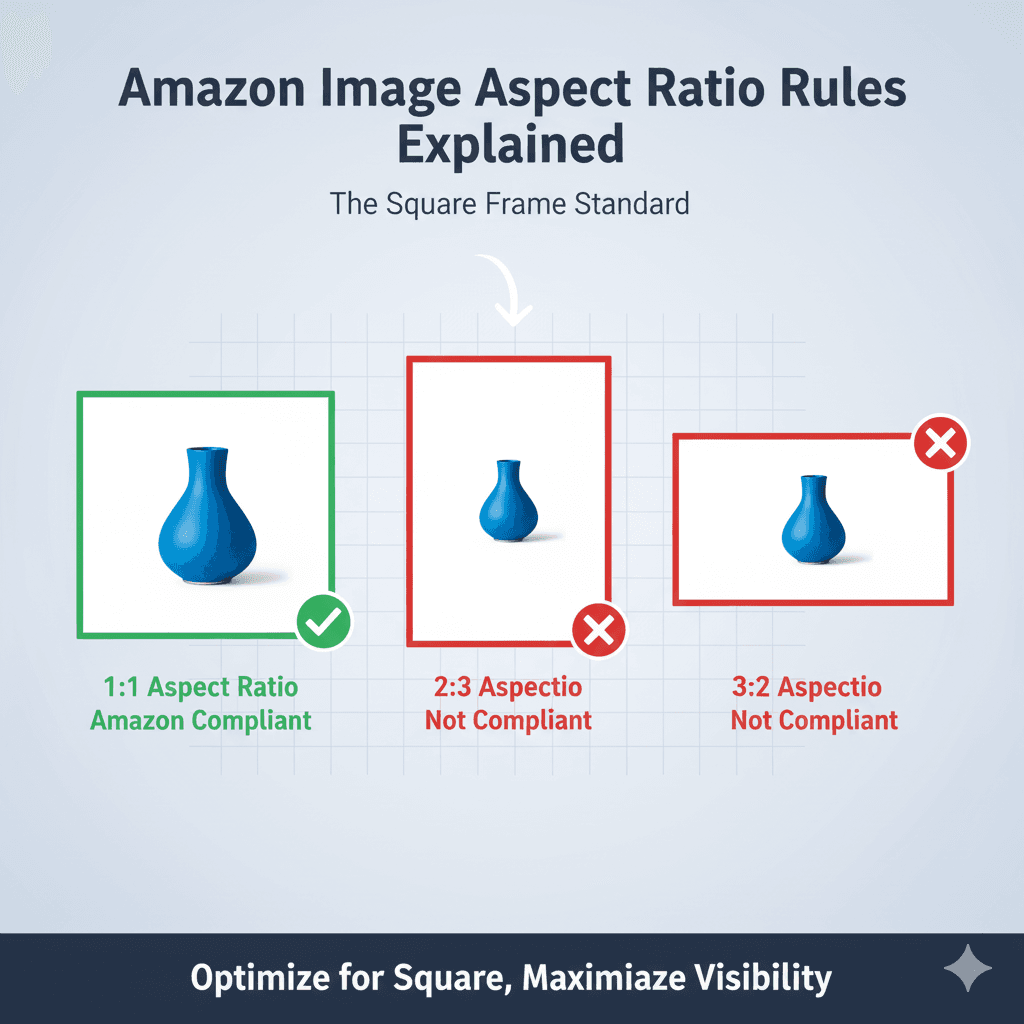
The Rule That Isn't Written Down
Ask what aspect ratio Amazon wants and most guides give a confident answer: square, with a list of "accepted" ratios and a warning that anything else gets rejected.
Amazon's own Product image guide says something simpler. Images must be 500 to 10,000 pixels on their longest side, in JPEG, TIFF, PNG or non-animated GIF, and clear with no jagged edges. There is no general aspect ratio rule. (Amazon Product image guide).
Category guides can add specifications. For example, Amazon's clothing image guidelines list, among the requirements for a main image: "Minimum aspect ratio is close to 3:4 (width/height)". (Amazon Image guidelines for clothing) Do not assume our square recommendation satisfies every category specification. The Amazon image requirements guide sets out which rules exist and what happens when you break them.
This guide explains our general square-shape recommendation. Check category guidance before choosing a shape. It covers:
- What aspect ratio means
- Why square is the shape to use, where category guidance permits it
- What tall, wide and extreme images cost
- How to make any product square without cropping it
Shape, not size. This page is about the proportions of your image — whether it is square, tall or wide. It is not about how many pixels it contains. Those are different rules with different consequences, and an image can pass one while failing the other. For pixel counts, the zoom threshold and file weight, read Amazon image size requirements. Looking for listing video specifications instead? Those are a separate rule set — see Amazon product video requirements.
What Is Aspect Ratio?
Aspect ratio is the proportion between an image's width and its height, written as two numbers such as 1:1 or 4:3.
Examples:
- 2000x2000 pixels = 1:1 (square)
- 2000x1500 pixels = 4:3 (landscape)
- 1500x2000 pixels = 3:4 (portrait)
To find yours, divide the width by the height. 1 is square, above 1 is wide, below 1 is tall.
Why Square Is the Shape to Use
Amazon’s general guide sets no aspect ratio. Here is why we recommend square where category guidance permits it (Amazon Product image guide).
1. It Fills a Square Display Area
Picture the image shown whole inside a square space. A square image fills it. A 4:3 image has to be scaled until its width fits, so its height fills only three quarters of the space. A 3:1 image fills a third.
Adding white padding alone does not enlarge the product. Its displayed size depends on its scale within the image.
2. It Costs Nothing Against the 85% Fill Rule
Amazon's advice is to have the product fill 85% or more of the frame (Amazon Product image guide), and ComplianceKit measures fill on the product's longest side. A tall bottle on a square canvas can span 90% of the height with white space either side. That white space does not count against it.
Under our method, squaring a tall or wide product does not reduce fill, as long as you add white space to the short side only. The 85% fill guide has the numbers.
3. One Shape Is Easy to Keep Consistent
Across a listing, and across a catalogue, one shape looks deliberate. Square is the simplest shape to hold every image to.
4. It Is What the Fix Produces
ComplianceKit's fix frames every product on a square of pure white, for the reasons above.
Shapes Other Than Square
These are not Amazon categories. There is no official list of accepted ratios. They are a practical guide to what each shape costs (Amazon Product image guide).
Close to Square: 4:5, 5:4, 3:4, 4:3
4:5: 2000x2500
5:4: 2500x2000
3:4: 1500x2000
4:3: 2000x1500
The cost is small. Shown whole in a square space, a 4:5 image fills 80% of it and a 3:4 image fills 75%. If your photo is already one of these shapes and reshooting is not an option, it is usable. Adding white space to make it square is still a two-minute job, and it keeps a consistent canvas shape without enlarging the product.
Avoid: 16:9, 9:16
16:9 is nearly twice as wide as it is tall. 9:16 is the same shape stood on its end. Both come from screen formats rather than from product photography.
Shown whole in a square space, a 16:9 image fills just over half of it (56%). The product’s displayed size depends on its scale within the image. Adding white padding alone does not enlarge the product.
A wide product does not need a wide image. Put it on a square canvas instead: under our longest-side method, white space above and below does not reduce fill.
Extreme Ratios: 3:1, 1:3
3:1: 3000x1000
1:3: 1000x3000
Shown whole in a square space, these fill a third of it. Even a yoga mat or a floor lamp is better served by a square canvas with white space on the short side.
Common Aspect Ratio Mistakes
Mistake #1: Uploading the Photo's Natural Shape
The problem: a wide product (a yoga mat, 3000x1000) goes up as a 3000x1000 image, because that is the shape it was photographed at.
The display area: the canvas occupies a third of a square space. Padding it to 3000x3000 leaves the displayed product the same size.
The fix: place it on a square canvas sized from its longest side. A 3300x3300 canvas gives the mat a 91% span, with white space above and below.
Mistake #2: Cropping Into the Product to Make It Square
The problem: to make a wide product square, the left and right ends are cropped off.
The cost: the image no longer shows the whole product, and the parts cut off are often the ones a buyer checks: ends, connectors, handles.
The fix: don't crop the product. Add white space to the short side instead.
Mistake #3: Adding White Space on Every Side
The problem: a 3000x1500 product is centred on a 4000x4000 canvas "to be safe".
The cost: its longest side now spans 75% of the frame, below ComplianceKit’s 85% span target.
The fix: add white space to the short side freely, and keep it tight on the long side. For a 3000px-long product, stay under 3529px (3000 ÷ 0.85). About 3300px leaves a small margin.
How to Make an Image Square
Method 1: Add White Space (Recommended)
Use this for any product that is not already square.
Photoshop:
- Image → Canvas Size
- Set width and height to the same value, about 10% larger than the product's longest side
- Anchor: centre
- Canvas extension colour: white (#FFFFFF)
- Click OK
Canva:
- Create a square design
- Set the background to white
- Place the product image in the centre
- Resize it so its longest side reaches about 90% of the canvas
- Download
Check the result is pure white (RGB 255, 255, 255). A canvas extension that picks up a near-white colour from the photo is a common way to fail the background rule — see Amazon white background requirements (Amazon Product image guide).
Method 2: Crop to Square (Only Into Background)
Use this only when the photo has spare background on the long sides and the whole product fits inside a square crop.
Photoshop:
- Select the Crop Tool (C)
- Set the ratio to 1:1
- Frame the product, leaving an even margin
- Confirm that nothing of the product is cut off
- Crop
Never crop into the product.
Quick Aspect Ratio Check
- Read the image dimensions (in most file browsers: Properties or Get Info)
- Divide width by height
- Read the result:
- 1: square, nothing to do
- 0.75 to 1.33 (3:4 to 4:3): close to square, worth squaring
- Further from 1: add white space to the short side
Automated check: ComplianceKit reports the ratio of any image you upload and marks anything that is not square. If the image needs fixing, the fix frames the product on a square of pure white.
Summary: Key Takeaways
✅ Amazon's rule: none in general. Clothing main images: an aspect ratio "close to 3:4" at minimum (Amazon Product image guide; Amazon Image guidelines for clothing).
✅ The shape to use anyway: square (1:1)
✅ Why: consistent framing; short-side padding preserves fill under our span method
✅ Close to square (4:5, 5:4, 3:4, 4:3): occupy 75–80% of a square display area; padding does not enlarge the product
✅ 16:9, 9:16 and 3:1: occupy less canvas area in a square display; product size depends on framing
✅ How: add white space to the short side, and never crop the product
Want to check an image's shape, fill and background in one go? ComplianceKit checks it free, with no account.
Frequently asked
What aspect ratio does Amazon require for product images?
For most products, none. Amazon's Product image guide covers size (500 to 10,000 pixels on the longest side), file format and image quality, and names no aspect ratio. Clothing adds guidance: Amazon's clothing image guidelines ask for a main image with a "Minimum aspect ratio is close to 3:4 (width/height)". Square (1:1) is our general recommendation; check your category’s specifications.
Will Amazon reject my image if it's not square?
Amazon's general requirements name no aspect ratio, and shape is not among the reasons on its Image suppression page. Check category specifications separately. Adding white padding alone does not enlarge the displayed product.
How do I make an image square without cropping my product?
Add white space to the shorter side. In Photoshop, use Image → Canvas Size with the canvas extension colour set to pure white. Make the square about 10% larger than the product's longest side, so the product still spans around 90% of the frame.
My product is very wide. Should I use a 16:9 image?
Use a square instead. Put the wide product on a square canvas a little larger than its width. The white space above and below does not reduce fill, under ComplianceKit’s longest-side measurement method.
Should every image in my listing have the same aspect ratio?
Amazon does not require it, but we recommend it. A set of images with one shape looks deliberate, and square is the simplest shape to keep consistent.
Sources
David Hunter
Founder, ComplianceKit
David Hunter is a software developer who built ComplianceKit to check Amazon product images against the rules Amazon publishes — zoom thresholds, background purity, product fill. He writes about which of those specifications Amazon requires and which it only prefers, and why sellers rarely find out which is which.
Related articles
Need help checking your Amazon images?
First fix free without an account or email. A free account adds 3 lifetime fixes.