Amazon Image Format Requirements (JPEG, PNG, GIF)
The Short Answer
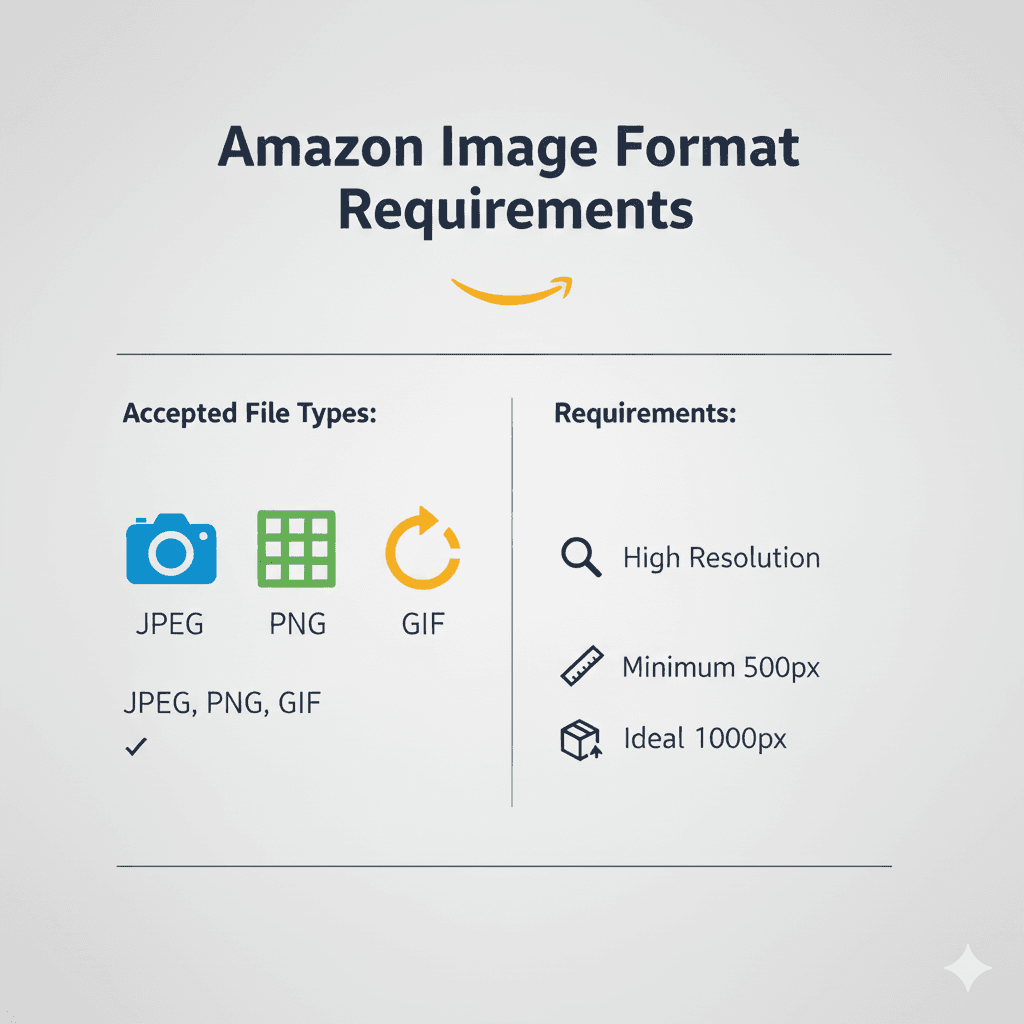
Amazon accepts JPEG, TIFF, PNG and non-animated GIF for product images, and recommends JPEG (Amazon Product image guide). Use JPEG for most images. For the main image, where Amazon asks for "a pure white background (RGB color values: 255, 255, 255)", PNG keeps that white exact. JPEG compression leaves off-white pixels around the product: 3,905 of them even at quality 100 in our white background study.
| Format | What Amazon says | Use it for | Watch out for |
|---|---|---|---|
| JPEG (.jpg, .jpeg) | Accepted, "JPEG recommended" | Most images: small files, good quality | Off-white pixels around the product on a white background |
| PNG (.png) | Accepted | A main image that needs an exact white background | Larger files |
| TIFF (.tif, .tiff) | Accepted | Keeping a lossless master | The largest files of the four |
| GIF (.gif) | Accepted if not animated | Rarely the right choice | Only 256 colours, so photos lose detail |
| EPS, BMP, PDF, PSD | Not accepted (Technical image file requirements) | Convert to JPEG or PNG before uploading |
Colour mode: Amazon prefers RGB. Its Technical image file requirements page marks CMYK "Not preferred. Convert to RGB before uploading."
What Amazon Accepts
Amazon's Product image guide gives the list in its specifications table: JPEG (.jpg or .jpeg), TIFF (.tif or .tiff), PNG (.png), non-animated GIF (.gif), with "JPEG recommended".
Its guide to taking product photos gives the reason for the preference:
"JPEG is the standard and most frequently used image because it allows for more color, and it can be compressed to small file sizes while retaining image quality."
The Amazon image requirements guide covers the rest of Amazon's image rules.
This guide covers:
- What Amazon accepts, refuses, and used to list by category
- Why JPEG is the default, and when it costs you a pure white background
- PNG, TIFF and GIF, and when each makes sense
- Colour mode and file size
- Formats that are not on the list, such as HEIC
Formats Amazon Refuses
Amazon's Technical image file requirements page names formats it does not accept:
- "EPS (encapsulated postscript file)"
- "BMP (Windows bitmap)"
- "PDF (portable document format)"
and "file formats that are proprietary to a specific software application", including native Photoshop (PSD), Illustrator, CorelDRAW and Microsoft Word files.
Upload one and the error is "Unsupported file suffix". Amazon's fix: "Convert your file to a supported format".
Older Category Guides Listed Fewer Formats
Amazon's older category style guides didn't all repeat the general list. The public copies we found say:
| Guide | Formats | Preferred |
|---|---|---|
| Home image guide (Q3 2020) | "JPEG, TIFF, PNG, or GIF" | "JPEG is preferred" |
| Shoes style guide (2019) | "JPEG (.jpg) and TIFF (.tif)" | "JPEG is preferred" |
| Clothing imaging guidelines (Spring 2021) | "JPEG (.jpg) and TIFF (.tif)" on its main image page; "JPG or PNG" on its file specifications page | JPEG |
These guides are dated, and the clothing guide disagrees with itself. Amazon's current Product image guide lists all four formats for every product image, with no category exceptions, and it is the newer source. JPEG is on every list and preferred by every guide.
JPEG: The Default
JPEG is on every list, every guide prefers it, and it keeps files small. For most product images it is the right choice.
How JPEG Keeps Files Small
JPEG is lossy: it discards detail the eye is unlikely to notice, working in small blocks of pixels. At high quality settings the loss is hard to see in a photograph.
What we measured on a detailed 3000 × 3000 product photo:
| Saved as | File size |
|---|---|
| JPEG | 322 KB |
| PNG | 6.8 MB |
That is roughly 20 times smaller for JPEG. Use JPEG for lifestyle images, detail shots, infographics built from photos, and any main image where a handful of near-white pixels around the product is acceptable to you.
Where JPEG Costs You: the Pure White Background
The same compression that makes JPEG small changes pixel values around sharp edges. On a main image, the sharpest edge is where the product meets the white background.
You do not have to take our word for this one. Here is the measurement, the method, and the file we measured, so you can run it yourself.
The test image: a 1200 x 1200 product photo whose background is exactly 255, 255, 255 on every one of its 1,065,515 background pixels — 74% of the frame. That matters: if the background starts at 254, you are measuring the camera rather than the codec. Download it.
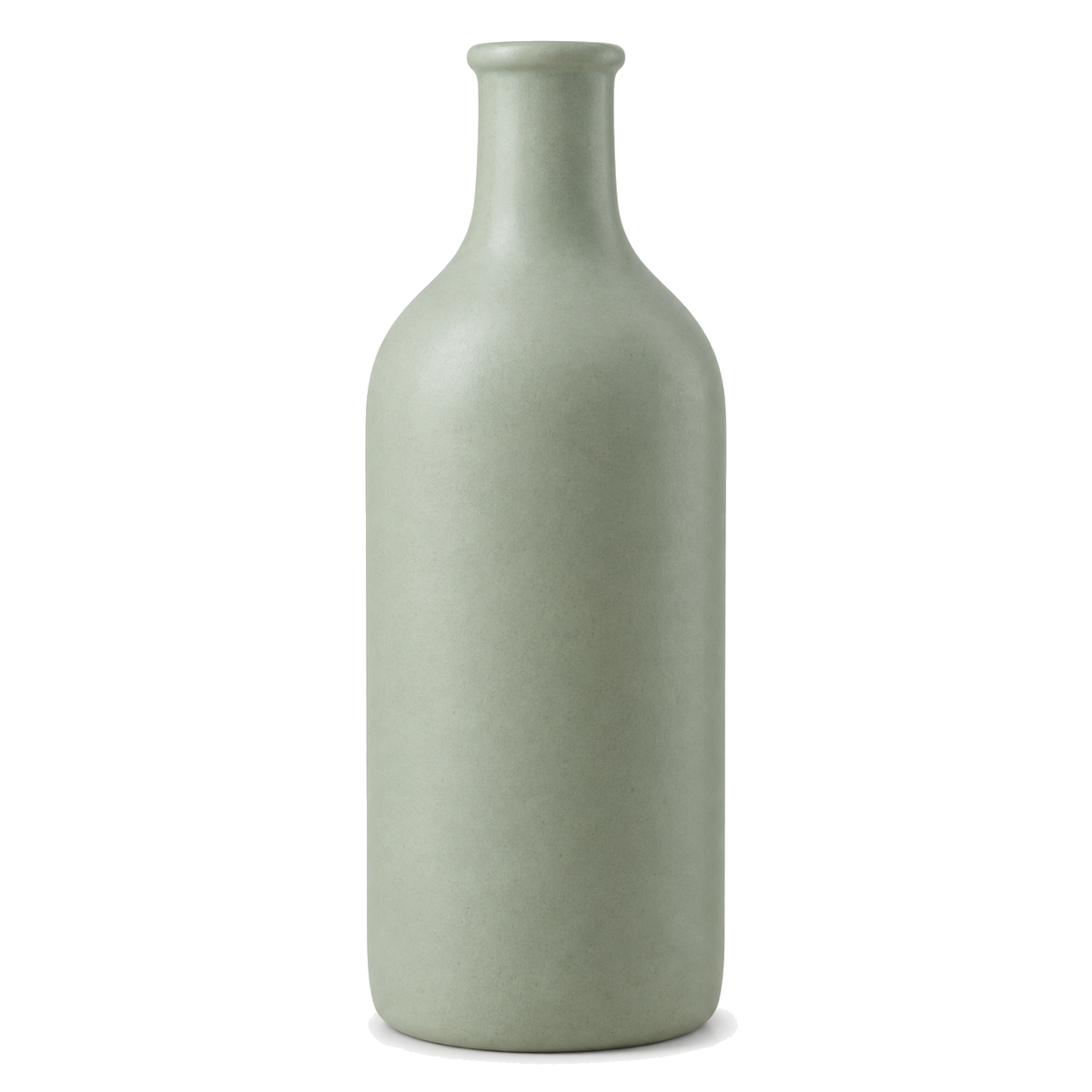
The method: record every pixel that is exactly 255, 255, 255 in the source. Save the file each way. Decode each result and look at those same coordinates again. Any that is no longer 255 was changed by the encoder, not by you.
To reproduce it, download the test image and the measurement script, then run npm install sharp and node measure-jpeg-white-loss.js. With sharp 0.34.5 it prints the numbers in this table exactly.
| Saved as | File size | Background pixels no longer 255 | Darkest one |
|---|---|---|---|
| PNG | 768 KB | 0 (0.0%) | — |
| JPEG, quality 95 | 96 KB | 7,082 (0.7%) | 244 |
| JPEG, quality 90 | 62 KB | 8,580 (0.8%) | 240 |
| JPEG, quality 80 | 39 KB | 10,608 (1.0%) | 231 |
Three things fall out of that table:
- PNG changes nothing. Not "almost nothing" — zero pixels out of a million.
- Quality 95 does not save you. It still moved 7,082 pixels, and the darkest landed at 244. Amazon's clothing style guide (2019) prohibits "Images with a non-pure white background (RGB less than 255)", and 244 is less than 255.
- Quality is a dial, not a switch. Going from 80 to 95 cut the damaged pixels by a third and roughly doubled the file. Off-white pixels remained in all three JPEG exports tested on this image. A separate scene test also found off-white pixels at every quality tested from 70 to 100.
The difference between pixel values 244 and 255 can be difficult to spot by eye. Measure the exported pixel values.
So there is a real trade-off on the main image:
- JPEG: small file, Amazon's preferred format, and a faint near-white halo around the product
- A lossless format (PNG or TIFF): background stays exactly 255, file is larger
ComplianceKit's fix outputs PNG for this reason. See white background requirements for the full picture.
JPEG Quality Settings
If you use JPEG:
- Export once, from the original. Amazon: "Avoid saving multiple times in JPEG format during editing, as each save reduces image quality."
- Use the highest quality setting. Amazon's technical requirements page: "For JPEG files, save at the highest possible quality level." Lower settings add visible blockiness and more off-white pixels around the product
- Check the exported file's background with an eyedropper next to the product, not the editing document
PNG: Lossless, Larger
PNG is lossless: every pixel is saved exactly. That makes it the simplest way to keep a background at exactly 255, 255, 255.
Use PNG when:
- The main image needs a background with zero off-white pixels
- An image has flat colours and sharp text, such as a size chart, where JPEG blurs the edges
The costs:
- File size. Our 3000 × 3000 photo was 6.8 MB as PNG against 322 KB as JPEG. A simple product on a lot of white compresses far better: a 1600 × 1600 framed bottle was 260 KB as PNG.
- Older clothing and shoes guides listed only JPEG and TIFF. The current Product image guide accepts PNG for every product image.
Transparency
PNG can store transparent pixels. Don't leave any in a main image: the requirement is a pure white background, and transparent is not white. Amazon does not document how it displays a transparent pixel. Flatten onto a layer of exactly 255, 255, 255 before you export.
TIFF: Lossless, and Larger Still
TIFF is usually saved without lossy compression, so, like PNG, it keeps a white background at exactly 255. Files are large. Amazon's technical requirements page says: "For TIFF files, do not apply any file compression."
For a pure white main image, PNG does the same job in a smaller file.
GIF: Non-Animated Only, and Rarely Useful
Amazon's list says non-animated GIF. A GIF stores at most 256 colours per image, which flattens the smooth gradients, shadows and textures of a product photo into visible bands.
There is no product photo GIF does better than JPEG or PNG. Use one of those instead.
Colour Mode: Use RGB
Amazon's Technical image file requirements page sets out three colour modes:
| Colour mode | Amazon's answer |
|---|---|
| RGB | "Yes" |
| CMYK | "Not preferred. Convert to RGB before uploading." |
| Grayscale | "Acceptable only for product detail page images that accurately depict gray or silver metal products." |
Its reason on CMYK: it "tends to show color tonal variations when displayed on a website". A CMYK file still uploads: Amazon's upload errors page accepts files "in RGB or CMYK color mode". CMYK images can display colour shifts. Convert to sRGB and inspect the exported file.
Amazon also warns against relying on embedded colour profiles: "Do not rely on ICC color profiles for accurate color display on Amazon."
To convert in Photoshop: Edit → Convert to Profile → sRGB IEC61966-2.1. Then re-check your white background: a conversion can move near-white values.
Not every device saves sRGB: recent iPhones, for example, capture in Display P3. Converting to sRGB before export means the colours don't depend on a profile. CMYK files usually come from designers or photographers working for print.
File Size
Amazon's help pages that we could read publicly state no file size limit for a single product image, so we don't quote one. The limits they do state are for bulk uploads: "Maximum 1,000 images and 1 GB per zip file."
What we can say:
- ComplianceKit accepts uploads up to 10 MB, and its check flags a file over 10 MB
- The biggest lever is format: the same 3000 × 3000 photo was 322 KB as JPEG and 6.8 MB as PNG
- The next is dimensions. Amazon's zoom needs 1,000 pixels on the longest side, and there is rarely a reason to upload far beyond what shows detail. See image size requirements
Formats That Aren't on the List
HEIC (iPhone's default), WebP, camera RAW files (.CR2, .NEF, .DNG) and SVG are not on Amazon's list of accepted formats, and PSD is on its list of refused ones. Convert before uploading.
- HEIC: set the iPhone to save JPEG with Settings → Camera → Formats → Most Compatible, or export existing photos as JPEG from your editor
- RAW: process in Lightroom, Photoshop or your camera's software, then export JPEG (or PNG/TIFF for a pure white main image)
- PSD: flatten and export
Renaming a file does not convert it. A PNG renamed to .jpg is still a PNG inside. Export from an editor to change the format.
For legacy bulk naming, Amazon expects a product identifier, variant code and extension separated by periods. The extension must match the format. Flexible naming lets you assign images after upload. Our free file name builder assembles one, or checks a name you already have.
Checking an Image
Manually:
- Format: check the file's real type in your editor's export or file information, not just its extension
- Colour profile: in Photoshop, Edit → Convert to Profile shows the current profile
- Background: eyedropper next to the product in the exported file, and look for 255, 255, 255
With ComplianceKit: upload the image and the results show:
- The file's format and size, flagging anything over 10 MB
- The colour space, flagging CMYK
- The dimensions, against Amazon's 500–10,000 px range and the 1,000 px zoom threshold
- The background, counting every pixel outside the product that isn't exactly 255
Summary: Key Takeaways
✅ Accepted: JPEG, TIFF, PNG and non-animated GIF, per Amazon's product photo guide
✅ Preferred: JPEG, in every guide
✅ Refused: EPS, BMP, PDF, and application files such as PSD
✅ JPEG's cost: near-white pixels around the product, 7,082 at quality 95 on our test image
✅ For a background of exactly 255: a lossless format, and PNG is the smaller one
✅ Colour: RGB. CMYK uploads, but Amazon says convert it
✅ File size: no per-image limit in Amazon's public help pages; ComplianceKit caps uploads at 10 MB
✅ HEIC, WebP, RAW: not on the list, so convert first
Want to check format, colour space, size and background in one go? ComplianceKit checks them free, with no account.
Frequently asked
What image formats does Amazon accept?
Amazon's Product image guide lists JPEG (.jpg or .jpeg), TIFF (.tif or .tiff), PNG (.png) and non-animated GIF (.gif), with JPEG recommended. Older category style guides listed fewer: Amazon's 2019 shoes guide and Spring 2021 clothing guide said "Amazon accepts JPEG (.jpg) and TIFF (.tif)". The current help page lists all four without category exceptions.
Should I use JPEG or PNG for Amazon product images?
JPEG for most images, because files are much smaller and Amazon prefers it. For a main image where the background must be exactly RGB 255, 255, 255, a lossless format avoids the near-white pixels JPEG compression leaves around the product. On our published test image, JPEG at quality 95 left 7,082 off-white pixels where PNG left none.
What is the maximum file size for Amazon images?
None of the Amazon image guides we could read publicly states a file size limit, so we can't quote one. ComplianceKit accepts uploads up to 10 MB and flags anything larger.
Can I upload a PNG with a transparent background?
The main image needs a pure white background, and transparent is not white. Amazon does not document how it displays a transparent pixel, so flatten the image onto a layer of exactly 255, 255, 255 before exporting.
Does Amazon accept CMYK images?
It uploads, but Amazon asks you not to. Its upload errors page accepts files "in RGB or CMYK color mode", while its Technical image file requirements page marks CMYK "Not preferred. Convert to RGB before uploading." Convert to sRGB.
My phone saves HEIC. Will Amazon take it?
HEIC is not on Amazon's list of accepted formats. Convert it to JPEG, or set the iPhone to save JPEG: Settings → Camera → Formats → Most Compatible.
Sources
- Product image guide
- Technical image file requirements
- Image upload errors and display issues
- 6 tips for taking product photos in 2025
- Seller Imaging Guidelines: Clothing & Accessories (Spring 2021)
- Category Style Guide: Clothing & Accessories (2019)
- Category Style Guide: Shoes (2019)
- Amazon Home Selection Image Guide (Q3 2020)
David Hunter
Founder, ComplianceKit
David Hunter is a software developer who built ComplianceKit to check Amazon product images against the rules Amazon publishes — zoom thresholds, background purity, product fill. He writes about which of those specifications Amazon requires and which it only prefers, and why sellers rarely find out which is which.
Related articles
Need help checking your Amazon images?
First fix free without an account or email. A free account adds 3 lifetime fixes.