Text and Logo Rules for Amazon Product Images
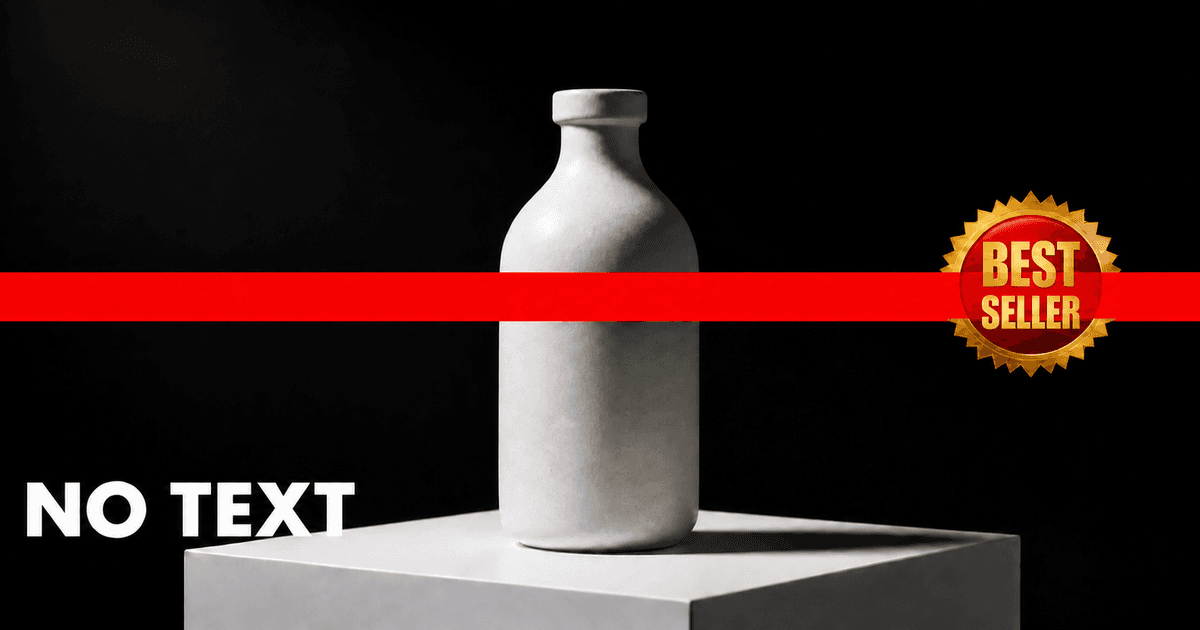
The Rule, in Amazon's Words
Amazon's main image requirement on graphics is one sentence. The forum moderator account Joey_Amazon quoted it on Amazon's Seller Forums, in reply to a seller whose listings were suppressed for text:
"No text, logos, borders, color blocks, watermarks, or other graphics covering the product or in the background. Products with multiple pieces must be relative in size, with no one piece enlarged." (Amazon forum: text suppression).
Amazon's current Image suppression help page lists the same rule as a reason to hide a listing from search: "Main image has text, logo, graphic, or watermark. Submit a compliant image to lift the image suppression." (Amazon Image suppression).
The rule applies to the main image, the one shown in search results. The Amazon image requirements guide covers the rest of the rules that apply to it (Amazon Product image guide).
This guide covers:
- What that sentence rules out
- How text printed on the product itself is treated
- What enforcement actually looks like
- Where text does belong
- How to check an image before uploading
What the Rule Rules Out
Take the sentence one item at a time. Each of these, added to the image over the product or in the background, breaks it (Amazon forum: text suppression):
Text:
- Claims such as "Best Seller", "#1", "Premium Quality" or "New"
- Promotions such as "Sale", "50% OFF" or "Free Shipping"
- Feature callouts such as "Waterproof" or "BPA-Free"
- Website addresses, social handles or contact details
Logos:
- Your brand logo placed in a corner
- Award or certification seals added on top of the photo
Borders:
- A frame or outline around the image or the product
Color blocks:
- Coloured panels or bands behind or beside the product
Watermarks:
- A logo or name laid over the photo, however faint or small
Other graphics:
- Badges, ribbons, icons, arrows, stickers
The test is simple: was it added to the image, or photographed as part of the product? If it was added, it does not belong on the main image.
The sentence also covers sets: "Products with multiple pieces must be relative in size, with no one piece enlarged." A kit photographed with one item scaled up to show detail breaks the rule, even with no text anywhere.
Text That Is Part of the Product
The rule targets graphics covering the product or in the background. Text printed on the product is neither. It is the product (Amazon forum: text suppression).
Part of the product:
- The label on a bottle or jar
- A brand name embossed or printed on the item
- The title and author on a book cover
- A slogan printed on a T-shirt
- A name on a personalised item, when that is what the buyer receives
Added to the image:
- A "Best Seller" badge placed beside the bottle
- A "30-Day Supply" callout in the corner
- An "Award Winner" seal laid over the book cover
- A caption under the product on the white background
A useful question: if you removed every edit and looked at the photo straight out of the camera, would this text still be there? If yes, it is part of the product.
Where That Line Gets Tested
Sellers of personalised products have reported listings suppressed for text in the image, where the text was the product. One seller put it plainly in the thread quoted above: "the customer can personalize with text and name, so OF COURSE, the product and image will have text in it as it is part of the product." (Amazon forum: text suppression).
Joey_Amazon first repeated the requirement, then offered to escalate: "If the text is actually part of the product and its being suppressed. Please reply here with the seller support Case ID including all of the details."
So text on the product is within the rule, but it can still be flagged. If that happens, a support case is the route, not editing the product out of its own photo.
What Enforcement Actually Looks Like
Two things are true at once, and both come from Amazon's own forums.
Listings do get suppressed for text. Sellers report it, and Amazon's forum moderator treated it as the standard requirement being applied (Amazon forum: text suppression).
Enforcement is not instant or complete. In a thread titled "Why Doesn't Amazon Enforce Main Image Policy?", a seller described search results full of main images with "bright colored graphics and text all over the product". Amazon's community manager team replied: "While we do enforce sellers that do not follow the product image requirements, it may take some time for the system to detect them." (Amazon forum: enforcement timing).
The practical reading: rule-breaking main images you see in search results are not evidence the rule is optional. They may simply not have been caught yet, and yours can be.
Where Text Belongs: Your Other Images
The requirement quoted above is written for the main image. Your other images are where listings put the information the main image cannot carry (Amazon forum: text suppression):
- Feature callouts: the product with arrows and short labels pointing to what matters
- Size charts: dimensions and sizing, with clear labels
- How it works: steps, with a line of text each
- What's in the box: every piece laid out and named
- In use: the product in context, with a short caption
Keep that text short and legible at a small size.
Some text is banned on every image, not just the main one. Amazon's Product image guide rules out "images of customer reviews, five-star imagery, claims (for example, free shipping), or selling partner-specific information", and badges such as "Best seller" or "Amazon's Choice". So a "Free Shipping" callout doesn't become acceptable by moving it to image two. The secondary image guide covers what infographics may say (Amazon Product image guide).
How to Check an Image Before Uploading
ComplianceKit does not detect text, logos, watermarks or borders. It checks the background, product fill, size and zoom, shape and file format. For this rule, check by eye.
The Checklist
For the main image, look for anything added to the photo (Amazon forum: text suppression):
☐ No added text: claims, promotions, callouts, web addresses
☐ No logos: including your own brand logo in a corner
☐ No watermarks: however faint
☐ No badges, seals, icons or stickers
☐ No borders or frames
☐ No color blocks behind or beside the product
☐ Every piece of a set at its true relative size
☐ Text printed on the product itself is fine, and needs no editing out
A Quick Method That Catches Most Problems
- View the image at the size of a search result thumbnail, then at full size
- Look at the corners and the edges first: badges and watermarks tend to sit there
- Look at the white background around the product for faint text or shapes
- Compare with the original photo, if you have it. Anything in the final image that is not in the original was added
Summary: Key Takeaways
✅ The rule: "No text, logos, borders, color blocks, watermarks, or other graphics covering the product or in the background" (Amazon forum: text suppression).
✅ The test: added to the image breaks it; printed on the product does not
✅ Sets: every piece at its true relative size, with none enlarged
✅ Enforcement: listings do get suppressed, but detection "may take some time" (Amazon forum: enforcement timing).
✅ Text belongs on your other images: callouts, size charts, how-to
✅ Check by eye: ComplianceKit does not detect text or logos
ComplianceKit checks background, product span, dimensions and format, and offers framing recommendations. It does not establish complete Amazon compliance. It's free, with no account needed.
Frequently asked
Can my Amazon main image have text on it?
Not added text. Amazon's main image requirement is: "No text, logos, borders, color blocks, watermarks, or other graphics covering the product or in the background." Text that is physically part of the product, such as a printed label, is part of the product rather than something covering it.
What if my product physically has text printed on it?
The rule targets graphics covering the product or in the background, and text printed on the product is neither. Sellers of personalised products have still reported listings suppressed for text in the image. In that thread, the forum moderator account Joey_Amazon offered to escalate cases where "the text is actually part of the product and its being suppressed".
Will Amazon suppress my listing for text on the main image?
It can. Sellers on Amazon's forums have reported listings suppressed for text in the main image. Enforcement is not instant or consistent, though: Amazon's community manager team wrote that "it may take some time for the system to detect them". Other listings breaking the rule staying live is not evidence yours will too.
Can I use text on my other product images?
Yes, within limits. The requirement quoted above is written for the main image, and listings use their other images for feature callouts, size charts and infographics. But Amazon's Product image guide bans some things on every image: customer reviews, five-star imagery, claims such as free shipping, and Amazon's badges and logos.
Does ComplianceKit check for text and logos?
No. ComplianceKit checks the background, product fill, size and zoom, shape, and file format. It does not detect text, logos, watermarks or borders, so check those by eye using the checklist in this guide.
Sources
David Hunter
Founder, ComplianceKit
David Hunter is a software developer who built ComplianceKit to check Amazon product images against the rules Amazon publishes — zoom thresholds, background purity, product fill. He writes about which of those specifications Amazon requires and which it only prefers, and why sellers rarely find out which is which.
Related articles
Need help checking your Amazon images?
First fix free without an account or email. A free account adds 3 lifetime fixes.